When there is a new alert to triage in one of the alerting controls, you will receive a notification in the Zip Console
Alert Notifications
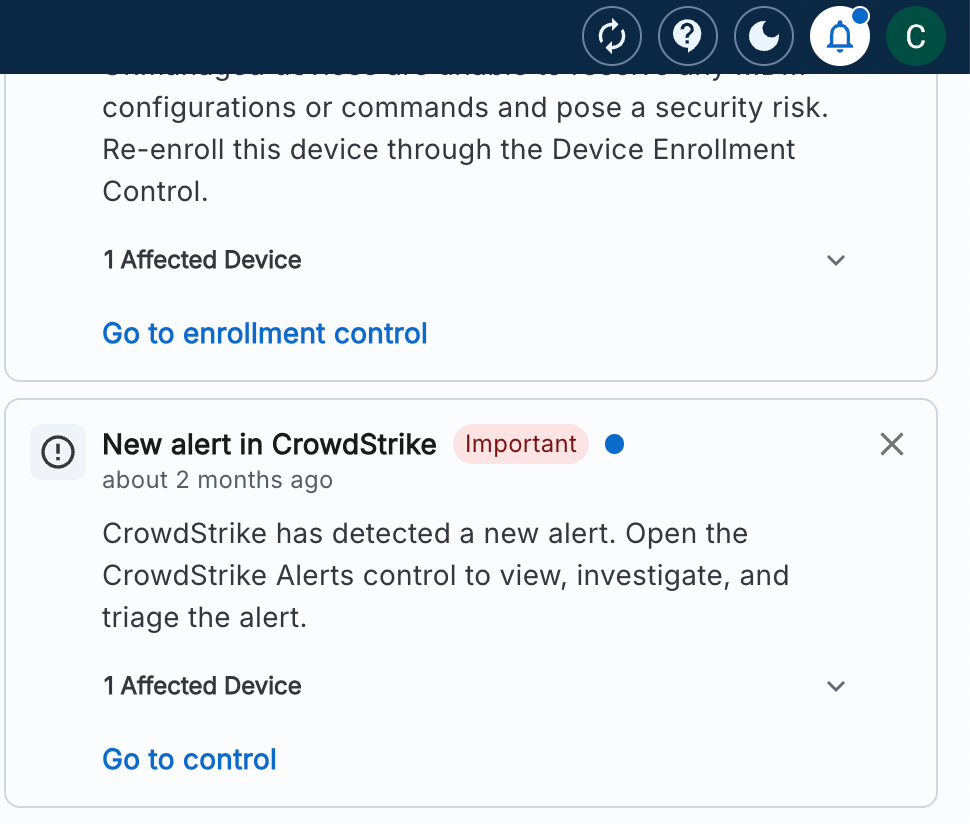
Our notification center will alert you to any new alert. You should investigate each alert to address it and close it out. You can check your notifications by clicking the ‘bell’ icon in the top right hand corner of your Zip console. A CrowdStrike alert will look like the following:
If you see a new alert, complete the following steps:
- Navigate to the control.
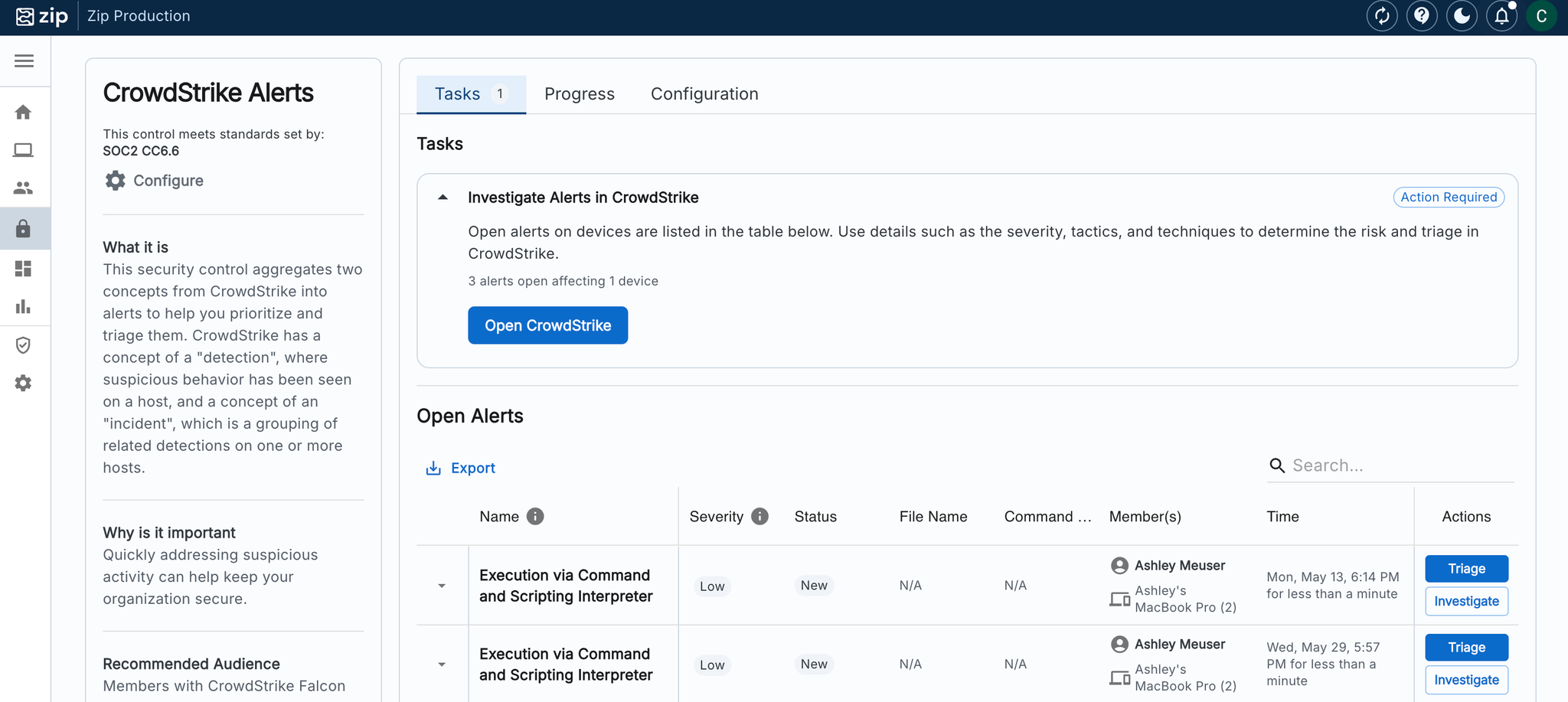
- Click the ‘Tasks’ tab, where you will see additional information about the alert:
- Here you can decide what to do with the alert. For CrowdStrike alerts, you can triage based on the information shown here or investigate further in CrowdStrike. If you don't want to troubleshoot CrowdStrike, Zip offers a managed detection & response service to manage alerts for you. Email success@ if you're interested!
[CrowdStrike Only] Investigating the risk in CrowdStrike
There are multiple recommended steps you can take to determine whether the alert needs further action or if it was a false positive:

- Open up the “Process Tree” tab and investigate the spawned process. If it spawned from a familiar app that employees are expected to be using, it’s likely that the alert can be closed.
- Check out DNS requests and script writes
- If you need help, feel free to email success@zipsec.com.
Once you have completed investigation within CrowdStrike, you will be able to triage and close the alert.
Return to the Zip console, and click Triage.
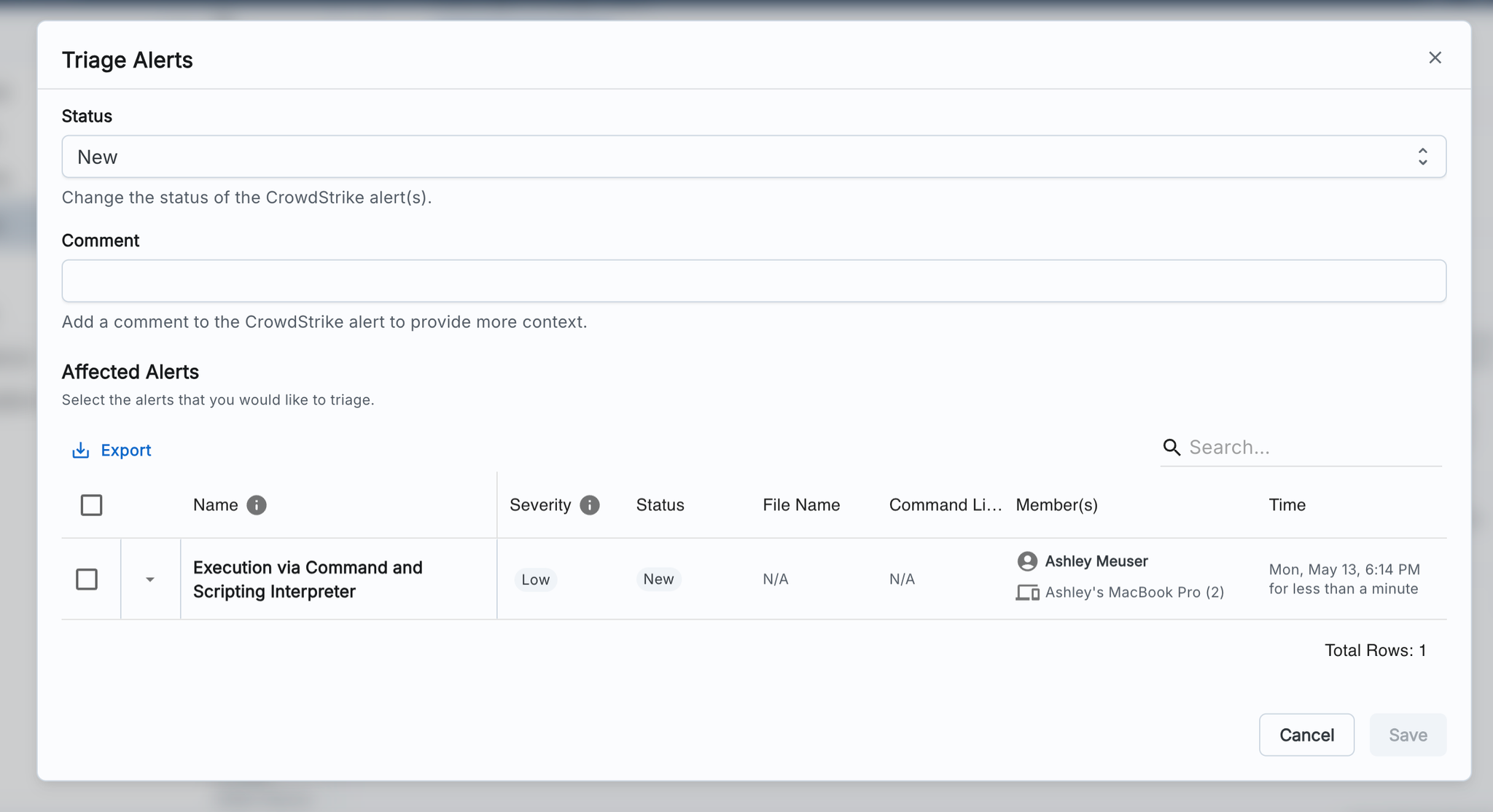
- Update the status accordingly, and/or add a comment to annotate it with context. Both of these changes will update the original alert in CrowdStrike as well.
- Select the alert(s) you wish to triage, before clicking “Save”. You may see multiple alerts here, because in CrowdStrike, a single Incident could encompass multiple related Detections.