If you have a new employee join your organization, as soon as they have an account registered with your IdP, they will be discoverable in the Zip Console. In the Zip Console, on the Overview home page, scroll down to see a table of all users:
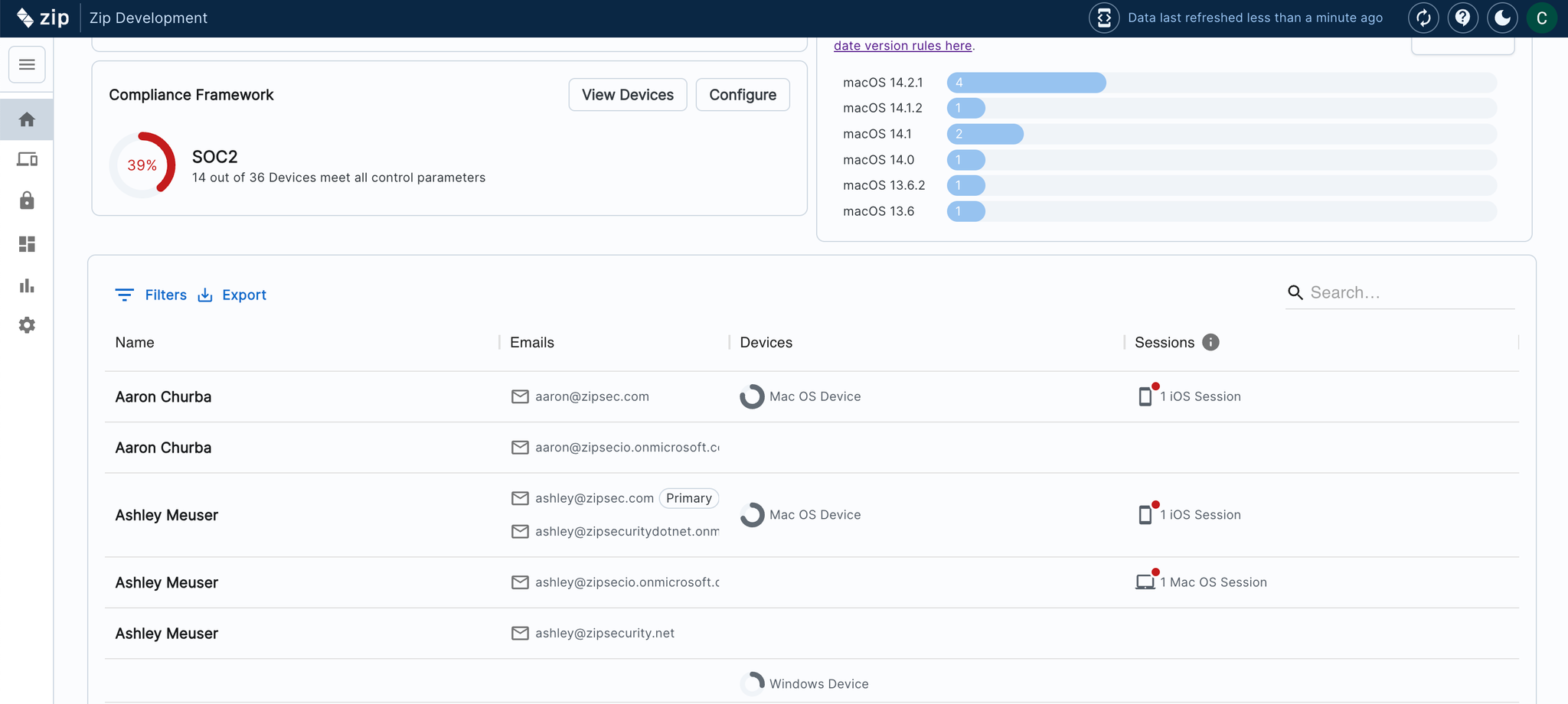
Here you can see the name of every account for your organization, and the devices they are logging into.
Sending out Device Enrollment Instructions to a new joiner
The main step you need to take for a new employee is getting their device(s) enrolled, so follow the below steps:
- Navigate to the “Controls” tab: https://console.zipsec.com/modules.
- Under the ‘Device Management’ Section, click on the control ‘Device Enrollment’
- Click the ‘Tasks’ tab and follow this 3-step guide to issuing instructions for device enrollment to your employees:
- Click into each task to review the email comms and confirm who will receive the email. You will see two email drafts, for Mac OS and Windows device enrollment. Toggle between the two options to confirm you are happy with the email content and subject. If you would like to change anything, you can make edits by hitting the ‘edit’ pencil.
- Review the 'Send to' list. This is auto-populated with all email addresses of unenrolled devices automatically, but it can be edited by adding or removing email addresses.
- Click 'Send All'
Helpful tip! You have the option to skip sending out emails for each task by selecting the ‘Mark Complete’ button.
- The first email task is a ‘heads up’ that alerts employees about the upcoming device enrollment action that will be coming. If you don’t think this is a necessary step (e.g. if you are rolling out device enrollment on a short timeline, or simply want to reduce the volume of emails), you can opt to skip this step, by simply hitting the ‘mark complete button for this step.
- The second email task, "Send instructions on how to enroll a device in MDM", contains the instructions employees need for device enrollment, so unless this information is being shared in another way, you must send this email to get users to enroll their devices. Generally, we recommend you send this one.